Mega OTT IPTV Activation: How to Set Up Your Subscription
Mega OTT IPTV activation happens after your order or approved trial request is confirmed. You choose a subscription, share your preferred device and contact details, receive your assigned connection information, and add it to a compatible IPTV player. The player itself is not your subscription: installing an app does not activate Mega OTT access.
This Mega OTT activation guide covers a new paid account, the 24-hour trial, the first subscription login and what to do when your credentials do not work.
Before you activate Mega OTT IPTV
Have these details ready:
- Your viewing device: for example, Android TV, Google TV, Fire TV Stick, Samsung or LG Smart TV, iPhone, or computer. Give the model if you need an app recommendation.
- Your preferred player: if one is already installed, share its name. Different apps accept different connection methods.
- Your viewing requirements: the countries, languages and specific channels you want checked, plus the number of streams you want to play at the same time.
- Your order contact details: the name and WhatsApp number used when requesting your subscription.
A standard Mega OTT subscription includes one simultaneous stream. You can configure compatible devices and switch between them, but playing on two screens at once requires an additional connection. The Mega OTT pricing page explains the available durations and screen options.
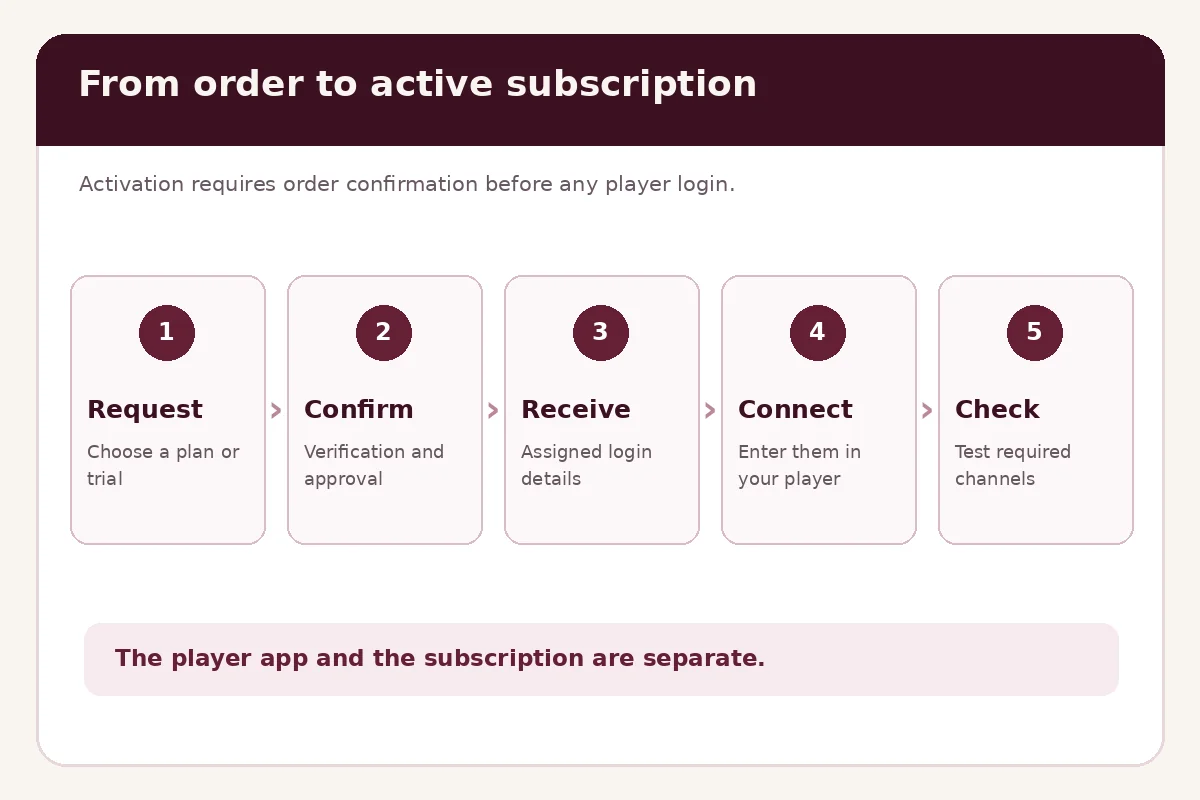
How to activate Mega OTT IPTV in five steps
1. Choose a plan or request a trial
Visit Mega OTT IPTV pricing to compare the one-, three-, six- and twelve-month subscriptions. Select the duration and indicate whether you need more than one simultaneous stream.
Not ready to buy? The 24-hour free trial lets eligible customers check their device and preferred channels. Trial requests require approval; access is not necessarily issued immediately.
2. Send your order and device details
Submit your name and WhatsApp number through the site’s ordering process. Tell the support team which device and IPTV player you use and what region or channels you need. If you do not have a player, ask for a compatible option before installing anything.
3. Confirm the payment and activation
Follow the payment instructions confirmed by the Mega OTT team. According to the Mega OTT Terms of Service, activation follows successful verification and completion of order requirements; processing times vary. A submitted checkout form or payment screenshot alone is not proof that the account is active.
For an approved trial, the team confirms access and the 24-hour window begins when the trial is activated, as explained in the Mega OTT FAQ.
4. Receive your Mega OTT credentials
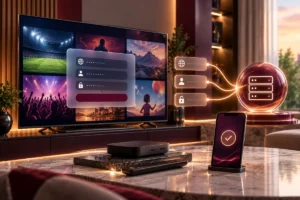
The team provides connection details appropriate to your player. For an Xtream Codes-compatible login, these usually include:
| Login field | What it means |
|---|---|
| Server URL | The address of the service, including its protocol and port if supplied |
| Username | Your assigned subscription username |
| Password | Your assigned subscription password |
Some customers receive an M3U playlist URL instead. Compatible MAG or Stalker-style setups use a different portal and MAC registration process, which must be confirmed for the device. These methods are not interchangeable. Never substitute a generic online server address or share your credentials publicly.
5. Add your subscription to a compatible player
Open the IPTV player installed on your device. Look for an option such as Add playlist, Add user or Login with Xtream Codes API. Choose the connection method Mega OTT supplied, enter the details exactly, then let the app load the categories and available streams.
For example, TiviMate is designed for Android TV and remote-control navigation. Its Google Play listing makes clear that it is a player, not a source of channels; premium app purchases are separate from a Mega OTT subscription. Do not assume its TV-focused interface is appropriate for a phone.
For detailed field-by-field instructions, follow our Mega OTT Xtream Codes login guide. Use the setup guidance for your particular app rather than copying another player’s menu labels.
How to check that your account is active
A successful login is a starting point, not the only check. Open a live channel, check another category, and try an on-demand title if one is included in your account. Where supported, confirm that the TV guide loads. Verify the specific channels you requested rather than assuming every channel listed in a regional directory is included.
If you ordered one connection, stop playback on the first device before trying a second one. An account can be installed on several devices without allowing simultaneous viewing.
Mega OTT activation problems and fixes
I paid but have not received my login
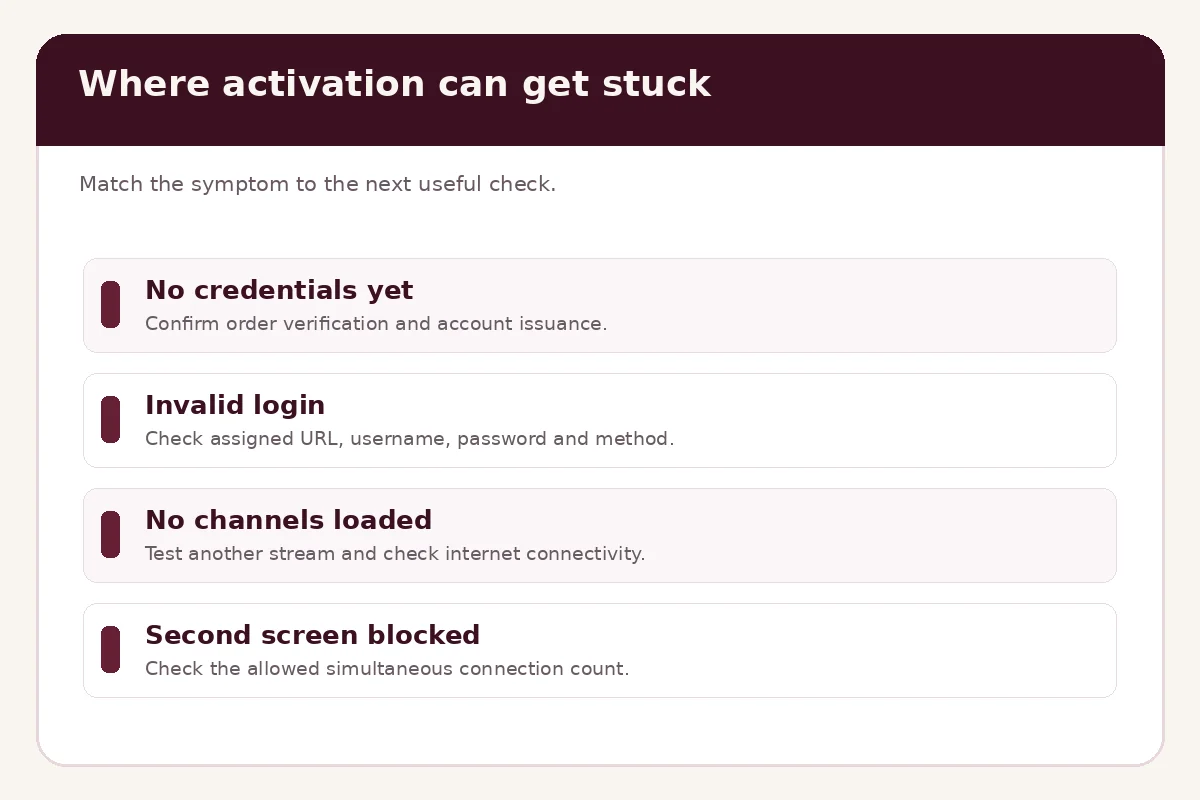
Check the WhatsApp conversation or contact method used for your order. Confirm that the team has verified your order and issued the credentials. Do not purchase again simply because the account has not appeared in your player; activation times vary.
My credentials show “invalid login”
Confirm that the service is active and that you selected Xtream Codes rather than M3U or Stalker. Copy the server URL, username and password exactly, including any supplied port. Look out for spaces added when pasting, and do not reveal your password in screenshots sent for support.
The player connects but channels do not load
Try a different channel and check whether the device has a working internet connection. Restart the app and, where useful, your device. This distinguishes a player or network problem from a particular unavailable stream. Before resetting an app, save the subscription details and any local settings you need.
My account works on one TV but not two at once
Check your plan’s simultaneous-stream allowance. A standard one-connection plan does not cover concurrent playback, even if both devices have the same Mega OTT subscription login. Ask support to quote an appropriate multi-screen plan if required.
For unresolved issues, contact Mega OTT support on WhatsApp. Include your device model, player name, order reference and exact error message, without posting passwords.
Activation, player licence and renewal: what is different?
Subscription activation enables access to the Mega OTT account after order verification. Player activation or licence may unlock features of a third-party app and does not by itself provide a channel subscription. Renewal extends an existing subscription through the service team; it is not the same as buying an IPTV player’s premium tier. If you already have an account, ask about renewal before creating another one.
Conclusion
To activate Mega OTT IPTV, submit a plan or trial request, confirm your order, receive the assigned credentials and sign in through a compatible player. Test your required channels and the number of simultaneous streams before treating setup as complete. If you have not received credentials, confirm the activation status with the team rather than entering random server URLs or buying another app licence.